How to Create a QR Code: The Complete Guide for Business, WiFi, and More
Published on: March 24, 2026
Introduction
Quick Response codes, universally known as QR codes, have transformed from a niche industrial tool into an essential bridge between the physical and digital worlds. While they were once viewed as a fading technology, the global events of 2020 triggered an unprecedented explosion in their adoption. Today, you find them everywhere: taped to restaurant tables for contactless menus, displayed on storefronts for digital payments, printed on shipping labels for tracking, and embedded in marketing flyers to drive web traffic.
The statistics tell a compelling story of digital integration. In 2022, over 89 million Americans scanned a QR code with their smartphones. This trajectory is not slowing down; industry projections suggest that by the end of 2026, over 100 million users in the United States alone will be regular QR code scanners. This shift represents more than just a convenience; it is a fundamental change in how consumers expect to interact with information.
Ready to create your own?
You can generate high-quality, professional QR codes for free using ourQR Code Generator. Whether you need to share a website, a WiFi network, or contact details, our tool handles it instantly.
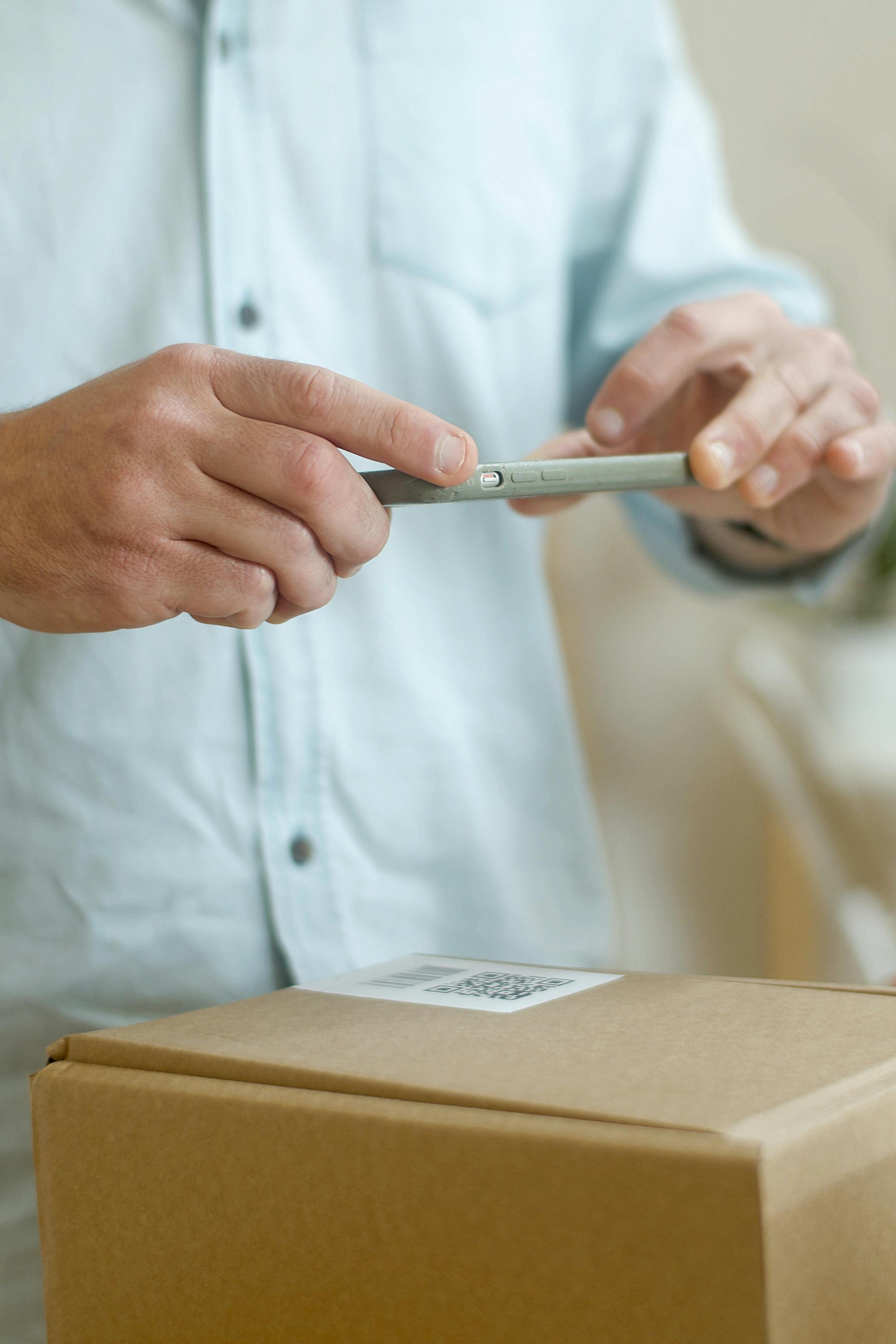
In this comprehensive guide, we will explore the mechanics of QR codes, detail the step-by-step process for creating different types of codes, and provide expert best practices to ensure your codes work perfectly every time.
What Is a QR Code?
At its core, a QR code is a two-dimensional matrix barcode. Unlike traditional one-dimensional barcodes, which only store data in the horizontal width of lines, QR codes store data both horizontally and vertically. This 2D structure allows them to hold significantly more information — up to several hundred times more than a standard barcode.
A Brief History
The QR code was invented in 1994 by Masahiro Hara from the Japanese company Denso Wave, a subsidiary of Toyota. The original purpose was to track vehicles and parts during the manufacturing process. The system was designed to allow high-speed component scanning, hence the name "Quick Response." While Denso Wave holds the patent, they elected not to exercise it, allowing the technology to become an open global standard.
How It Works
A QR code consists of black squares (called modules) arranged on a square grid with a white background. When a smartphone camera or a dedicated scanner "reads" the code, it looks for specific markers:
- Finder Patterns: The three large squares in the corners that help the scanner identify the orientation and structure of the code.
- Alignment Patterns: Smaller squares that ensure the code can be read even if it is distorted or printed on a curved surface.
- Timing Patterns: Lines that help the scanner determine the size of the data matrix.
- Quiet Zone: The essential white border that separates the code from surrounding graphics.
Static vs. Dynamic QR Codes
When creating a code, it is vital to understand the difference between these two types:
- Static QR Codes: The data is encoded directly into the pattern. Once printed, the information cannot be changed. If the URL changes, you must print a new code. These are ideal for permanent information like WiFi passwords or vCards.
- Dynamic QR Codes: The code encodes a short redirect URL that points to the actual content. This allows you to change the destination URL at any time without changing the printed code. They also allow for scan tracking and analytics.
Error Correction Levels
One of the most powerful features of QR codes is Reed-Solomon error correction. This allows the code to be read even if it is partially damaged or obscured. There are four levels:
- Level L (Low): Approx 7% of data can be restored. Best for simple codes where size is restricted.
- Level M (Medium): Approx 15% of data can be restored. The standard for most marketing materials.
- Level Q (Quartile): Approx 25% of data can be restored.
- Level H (High): Approx 30% of data can be restored. Necessary if you plan to overlay a logo in the center of the code.
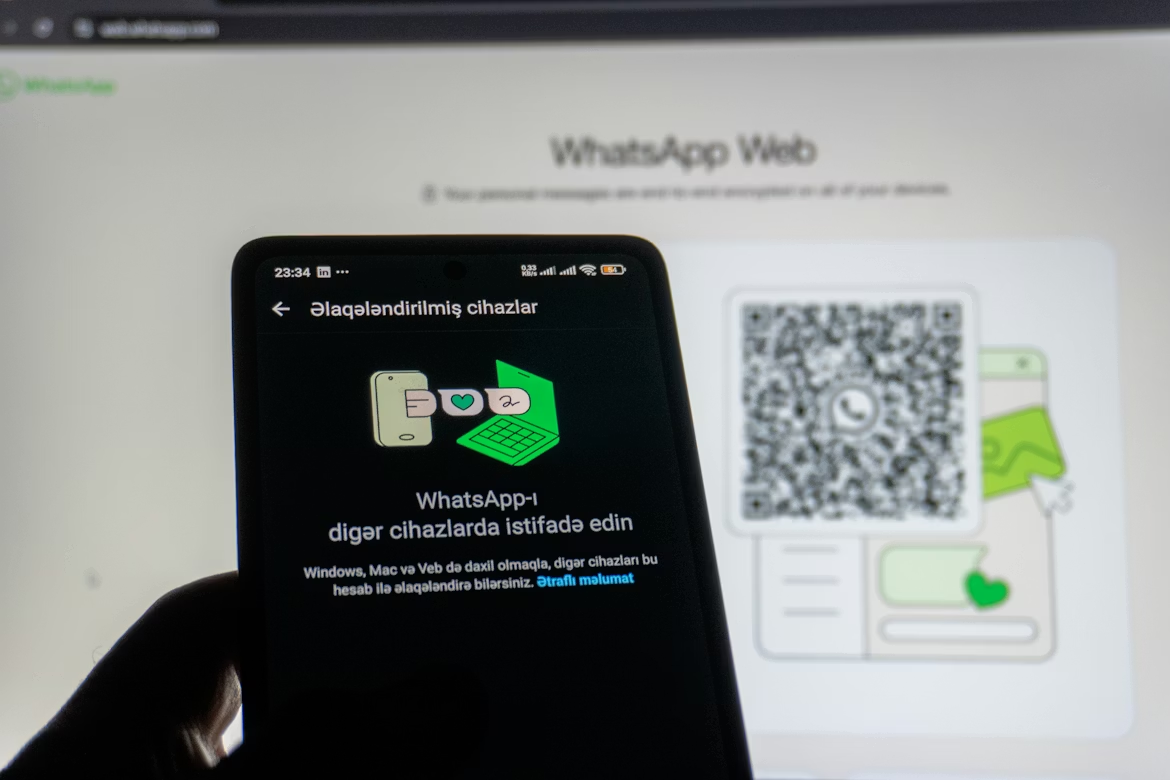
How to Create a QR Code for a URL
The most common use for a QR code is to direct users to a website. Instead of forcing someone to type a long, complex URL into their mobile browser, they can simply point their camera and tap a notification. This reduces friction and significantly increases conversion rates for digital marketing.
Step-by-Step Instructions
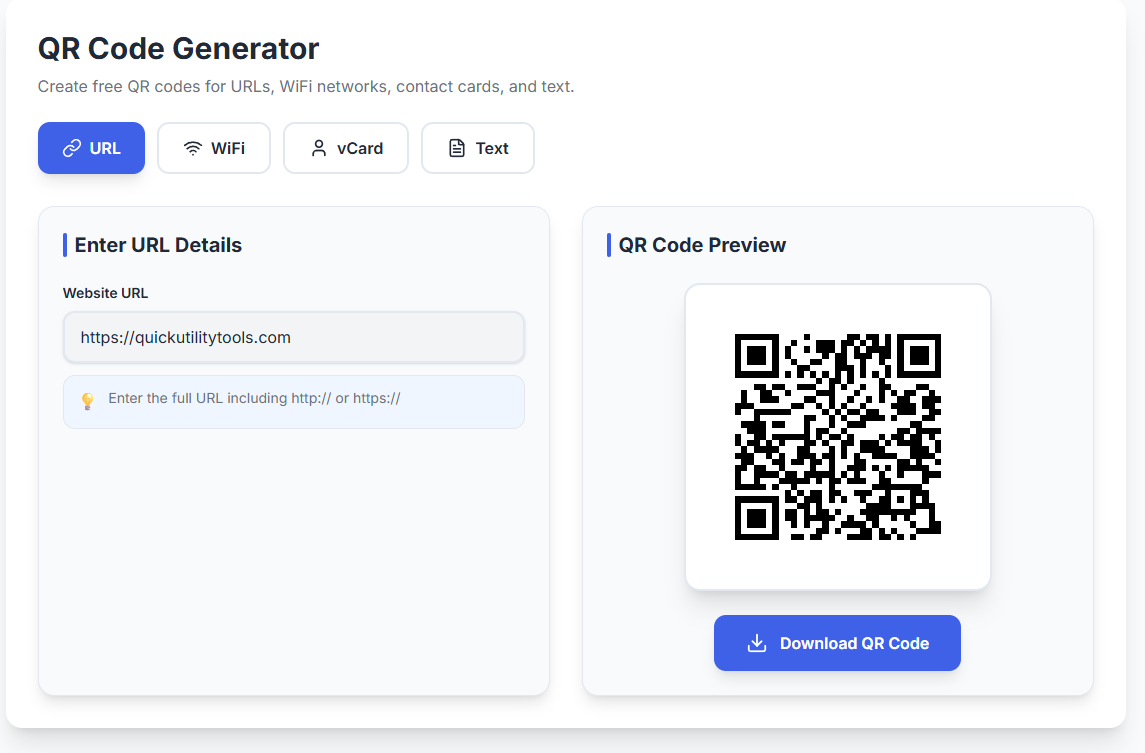
- Visit theQuickUtilityTools QR Generator.
- Select the URL tab from the top navigation menu.
- Enter your full website URL (e.g., https://www.yourbusiness.com/promo) into the input field.
- The QR code will generate instantly in the live preview pane on the right.
- Verify the preview looks clean and then click the Download PNG button to save the file to your device.
Common Use Cases
- Business Websites: Direct customers to your homepage from business cards or storefronts.
- Social Media: Link directly to your Instagram, LinkedIn, or YouTube channel to grow your following.
- Landing Pages: Send users to a specific promotion or product page from a print advertisement.
- Event Registration: Print codes on flyers so people can sign up for your webinar or workshop instantly.
- App Downloads: Link directly to the Apple App Store or Google Play Store.

How to Create a WiFi QR Code
Sharing a WiFi password can be a frustrating experience. Between long strings of random characters and the difficulty of distinguishing between "0" and "O," it is a point of friction for guests. A WiFi QR code eliminates this entirely. When scanned, modern smartphones automatically recognize the network details and offer a "Join Network" button, requiring zero typing from the user.
Step-by-Step Instructions
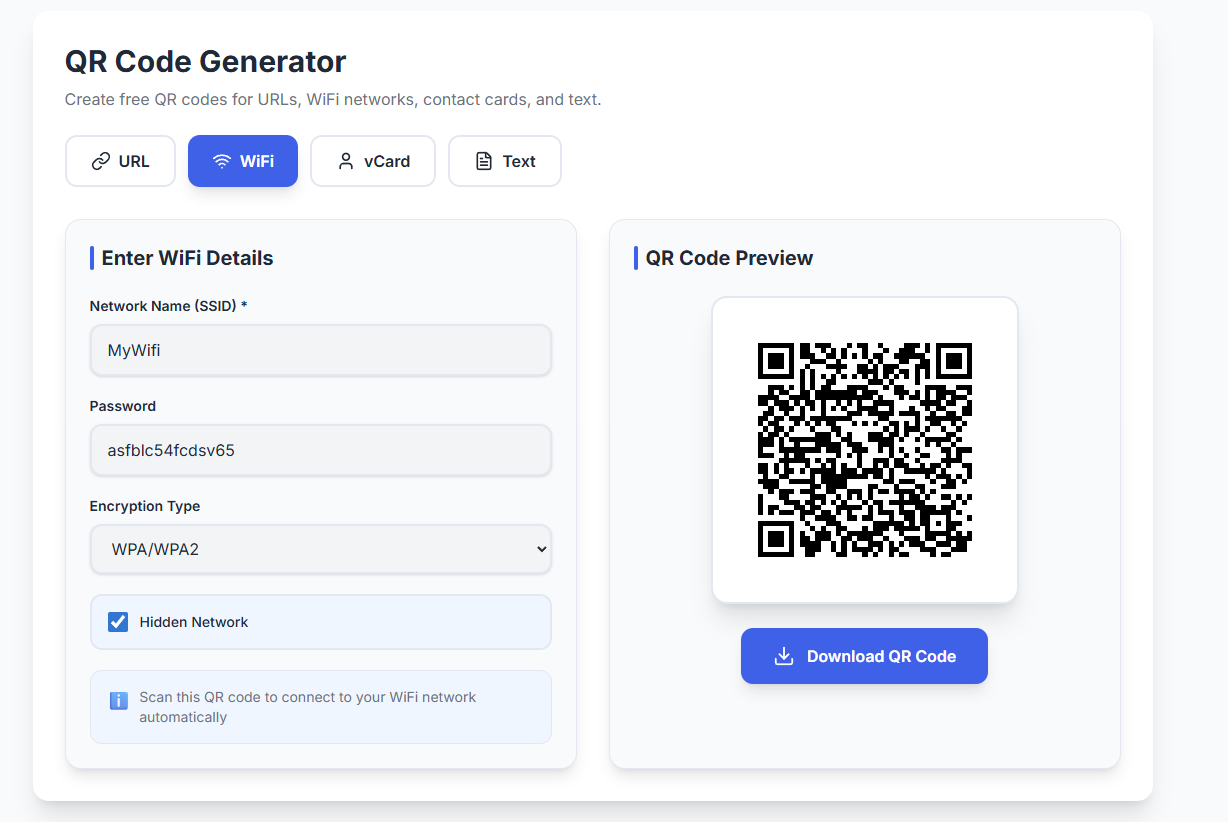
- On the generator, select the WiFi tab.
- Enter your SSID (this is the exact name of your WiFi network).
- Enter your Password. Our tool ensures this is encoded safely within the QR string.
- Select the Encryption Type. Most modern routers use WPA/WPA2. If your network is open, select None.
- If your network is configured as "hidden" (not broadcasting its name), toggle the Hidden Network switch to active.
- Download the generated PNG for printing.
Why This Is a Game-Changer
Convenience is the primary driver here. For Airbnb hosts or vacation rental owners, printing a WiFi QR code and framing it on a wall is one of the most-appreciated small touches for guests. In a professional office setting, having a guest network QR code in the lobby prevents front-desk staff from having to repeat the credentials dozens of times a day.
- Restaurants and Cafes: Print the code on table tents or the bottom of the menu.
- Retail Stores: Encourage shoppers to join your network to browse your digital catalog or use your app while in-store.
- Home Use: Stick a small QR code on the back of your router or inside a kitchen cabinet for friends and family.
How to Create a vCard QR Code (Digital Business Card)
The physical business card is often lost or discarded within days of a meeting. A vCard QR code ensures that your information actually makes it into your contact's phone. When scanned, the phone interprets the data as a Virtual Contact File (vCard 3.0), allowing the user to save your name, company, phone number, and email to their address book with a single tap.
Step-by-Step Instructions
- Select the vCard tab in the generator.
- Fill in the fields: First Name, Last Name, Organization, Phone, Email, and Website.
- As you type, the preview will update to include all the contact fields.
- Download the PNG. Because vCards contain more data than simple URLs, these codes will appear more "dense" with smaller modules.
Best Locations for vCard QR Codes
- The Back of Your Business Card: Keep the front clean for branding and put the QR code on the back.
- Conference Badges: Make it easy for fellow attendees to save your details during networking sessions.
- Email Signatures: Add a small QR code to your professional email signature.
- Resumes: Allow hiring managers to instantly save your contact info while reviewing your physical resume.
- Real Estate Signs: Let potential buyers save the agent's contact details instantly while standing in front of a property.
How to Create a Text QR Code
Sometimes you don't need to send someone to a website; you just need to show them a specific piece of information. A Text QR code encodes plain text directly into the pattern. The greatest advantage of this type is that it works entirely offline. The scanning device does not need an internet connection to read and display the text.
Step-by-Step Instructions
- Select the Text tab.
- Type your message into the text area. Our tool includes a character counter to help you manage the data density.
- The preview generates a code that, when scanned, will simply display that text on the user's screen.
- Download and print as needed.
Creative and Industrial Uses
- Inventory Management: Encode part numbers, serial numbers, or storage instructions on warehouse bins.
- Product Information: Display simple ingredients or safety warnings on packaging where space is limited.
- Scavenger Hunts: Use text codes to provide clues that participants can read even in areas with poor cellular reception.
- Classroom Resources: Teachers can use them to display answers to problems or hidden instructions for students.
- Event Logistics: Print codes on equipment crates to show exactly what should be inside each box.

QR Code Best Practices
Creating a QR code is simple, but ensuring it works reliably in the real world requires following some technical guidelines. A code that looks great on your screen might fail to scan if it is too small, lacks contrast, or is placed in a poorly lit area.
Size and Scanning Distance
As a general rule, the ratio of scanning distance to the size of the QR code should be roughly 10:1. If you expect a user to scan a code from 20 centimeters away, the QR code should be at least 2 centimeters wide. For a billboard where people scan from 10 meters away, the code needs to be 1 meter wide. Never print a QR code smaller than 2cm × 2cm (0.8 inches), as many older smartphone cameras will struggle to focus on it.
Contrast and Color
The most reliable QR codes are black on a white background. While you can use colors, you must maintain high contrast. The modules (the dots) must be significantly darker than the background. Never invert the colors (light dots on a dark background), as many scanning apps are not programmed to read inverted codes. Also, avoid using "shimmering" or metallic inks, which can create reflections that confuse the scanner.
The Quiet Zone
Every QR code requires a "Quiet Zone" — a clear margin of white space around all four sides. This allows the scanner to distinguish the code from its surroundings. If you place text or images too close to the edges of the QR code, it will likely fail to scan. Our generator automatically includes an appropriate quiet zone in the download.
Printing Resolution
When printing QR codes for marketing materials, ensure they are high resolution. Low-quality prints with "fuzzy" edges are difficult for cameras to interpret. Aim for a minimum of 300 DPI (dots per inch) for your final print files.
Test Before Distributing
This is the most critical step. Always test your code with multiple devices (both iOS and Android) and different scanning apps. Test it in the actual lighting conditions where it will be used. If it's going on a glossy flyer, check for glare issues. If it's going on a storefront window, ensure it's visible at night.

Creative QR Code Use Cases
The versatility of QR codes allows them to solve problems across nearly every industry. Here is how different sectors are using them to enhance customer experience and operational efficiency:
Hospitality & Restaurants
- Contactless Menus: Reduce printing costs and allow for instant menu updates.
- Ordering and Payment: Let guests order and pay directly from their table, reducing wait times.
- Review Requests: Link to your Google Business or Yelp profile on the bottom of the receipt.
- WiFi Access: Print codes on table tents to prevent guests from asking for the password.
Real Estate
- Yard Signs: Link to a 3D virtual tour or a detailed property page with more photos.
- Flyers: Include a vCard QR code so potential buyers can save the agent's info instantly.
- Open House Sign-ins: Replace the paper clipboard with a QR code linking to a digital contact form.
Events & Marketing
- Ticketing: Use QR codes as digital tickets that can be scanned at the door for rapid entry.
- Session Schedules: Print codes on lanyards that link to the live event schedule.
- Feedback Forms: Place codes near the exit to encourage attendees to fill out a quick survey.
Education
- Interactive Textbooks: Link to video tutorials or additional reading materials from the page margins.
- Assignment Submissions: Give students a code that opens the upload portal for their homework.
- Library Catalogs: Place codes on bookshelves that link to the digital search results for that category.
Why Use Our Free QR Code Generator?
While there are many QR generators available, many of them require accounts, have hidden limits on scans, or produce low-quality images. We built the QuickUtilityTools QR Generator to be the simplest and most reliable tool on the web.
- Four Tools in One: Generate URL, WiFi, vCard, and Text codes from a single interface.
- Instant Live Preview: See exactly what your code looks like as you type. No need to refresh or click "Generate."
- High Error Correction (Level H): Our tool defaults to the highest level of error correction. This ensures that even if your printed code gets a small scratch or bit of dirt on it, it will still scan perfectly.
- Clean SVG Rendering: We use SVG-quality rendering internally, which means your code is mathematically perfect and sharp.
- One-Click PNG Download: Save your code instantly in a format that is ready for web or print.
- Privacy Focused: We don't require an account, we don't track who scans your codes, and we don't save your data.
- Fully Responsive: Create codes on your desktop, tablet, or smartphone with ease.
Conclusion
QR codes have evolved from a specialized industrial tool into a universal digital gateway. Their ability to bridge the gap between physical objects and digital information makes them indispensable for modern businesses and individuals alike. By understanding the different types of codes available and following best practices for size, contrast, and testing, you can leverage this technology to simplify your workflows and better connect with your audience.
Whether you are setting up a WiFi network for your home, launching a nationwide marketing campaign, or just looking for a better way to share your contact information, the right QR code can save time and eliminate friction.
Explore our suite of free tools to help you work smarter:
- QR Code Generator — Create URL, WiFi, vCard, and Text codes.
- Scientific Calculator — Advanced calculations with history tracking.
- Loan Calculator — Estimate monthly payments and interest for any loan.
- Tip Calculator — Easily split bills and calculate gratuity.
Disclaimer: This article is for informational purposes only. QR code capabilities and scanning support may vary by device and app. Always test QR codes before distributing them.